

If you’re planning to go live on a Telegram channel from your PC, you’ll notice two options: “Start Live Stream” and “Stream With…”. While both let you broadcast to your audience, they serve very different purposes. This guide explains the differences, use cases, and how to choose the right option for your needs.
Bonus: How to Create a Telegram Channel?
Who Is This For?
- Creators and educators wondering which Telegram live option is better for teaching or workshops.
- Gamers and podcasters looking for high-quality broadcast setups.
- Community leaders and brands deciding whether to keep it simple or use professional tools.
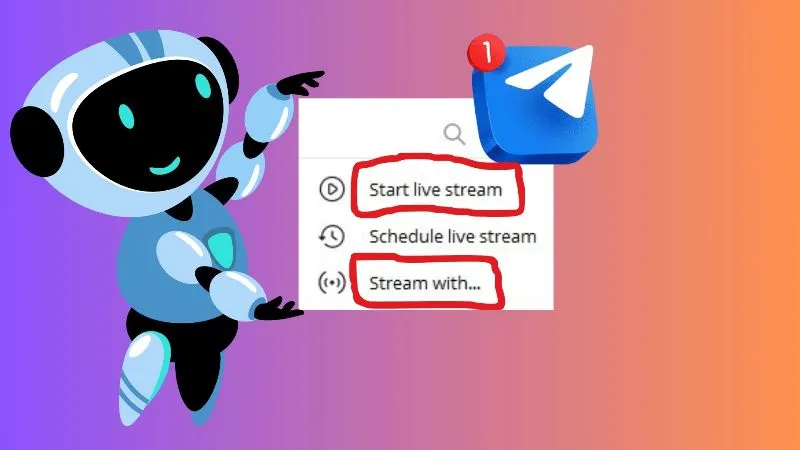
Option 1: Start Live Stream (Direct in Telegram)
The Start Live Stream option is built directly into the Telegram Desktop app.
How it Works:
- Uses your webcam and microphone.
- Runs entirely inside Telegram. No third-party software needed.
Pros:
- Simple & fast: One-click setup.
- Beginner-friendly: No technical skills required.
- Perfect for: Casual chats, community updates, Q&A sessions.
Limitations:
- Very limited customization.
- No overlays, graphics, or pro audio mixing.
- No multistreaming to other platforms.
Option 2: Stream With… (External Tools via RTMP)
The Stream With… option is designed for professional streaming setups using external tools like OBS Studio, Streamlabs, or Yostream.
How it Works:
- Telegram gives you an RTMP server URL + Stream Key.
- You plug those into your streaming software.
- Your broadcast from OBS (or another tool) streams directly into your Telegram channel.
Pros:
- High quality: Use pro cameras, mics, and screen capture.
- Full customization: Add overlays, graphics, multiple guests, or branding.
- Multistreaming: Stream to Telegram + YouTube, Twitch, or Facebook at the same time.
- Best for: Gaming, podcasts, webinars, and events.
Limitations:
- Requires external software.
- Slightly more setup time and technical know-how.
Quick Comparison Table
| Feature | Start Live Stream | Stream With… (RTMP) |
|---|---|---|
| Setup | One-click, in Telegram | Requires external software (OBS, etc.) |
| Input | Webcam + Mic | Any source (screen, gameplay, pro cameras, overlays) |
| Customization | Very limited | Full control & branding |
| Multistreaming | ❌ Not supported | ✅ Supported |
| Best For | Casual chats, quick updates | Professional streams, gaming, podcasts, events |
Real-World Use Cases
- Teacher running an online class? → Start Live Stream is quick and simple.
- Gamer streaming gameplay? → Use Stream With… via OBS for overlays and quality.
- Podcaster inviting guests? → External tools like Yostream let you add multiple guests easily.
- Brand doing a launch event? → Use Stream With… for a polished, professional look.
Key Takeaway
- Choose Start Live Stream if you need a fast, no-fuss broadcast with webcam and mic.
- Choose Stream With… if you want professional-level quality, multistreaming, and full creative control.
Pro Tip: Tools like Yostream let you stream to Telegram directly from your browser: no downloads required, easy guest invitations, and the ability to go live on multiple platforms simultaneously.