

Want to share updates, content, or connect with an audience on Telegram? Creating a channel is easy! Follow these steps to set up your own Telegram channel. Perfect for communities, businesses, or personal projects!
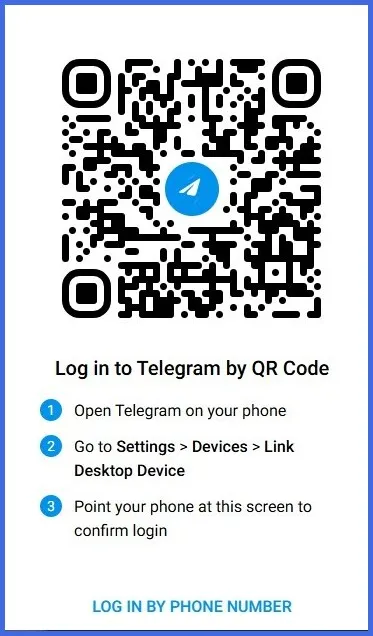
Step 1. Open Telegram
Use the Telegram app on your phone (iOS/Android), desktop (Windows/macOS/Linux), or web version (web.telegram.org). Ensure it’s updated to the latest version.
(In this tutorial, we'll demonstrate how to create a Telegram channel using a PC. However, we'll explain how to do the same using Mobile as well.)
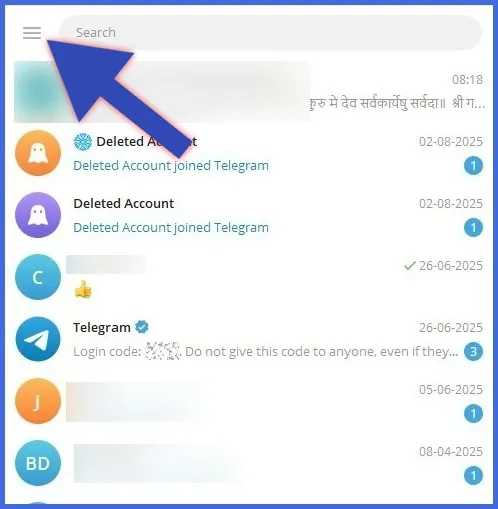
Step 2. Access the Menu
- Mobile: Tap the hamburger menu (three lines) in the top-left (iOS) or top-right (Android).
- Desktop/Web: Click the hamburger menu in the top-left corner.
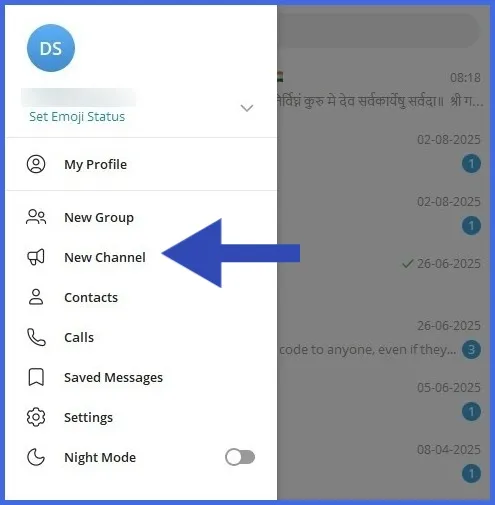
Step 3. Start a New Channel
- Select New Channel (mobile) or Create Channel (desktop/web).
- Can’t find it? Try the pencil icon in the chat list (some Android/iOS versions move it there).
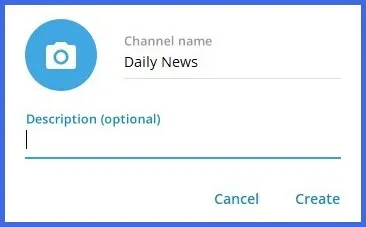
Step 4. Set Up Your Channel
- Enter a Channel Name (required) and an optional Description to share its purpose.
- Add a profile picture (optional) by clicking the camera icon.
- Click Create to proceed.
Step 5. Choose Channel Type
- Public Channel: Discoverable via search. Set a unique Permanent Link (e.g., t.me/YourChannelName).
- Private Channel: Invite-only with a private link generated by Telegram.
- Click Save to continue.
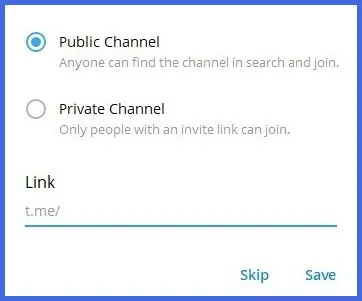
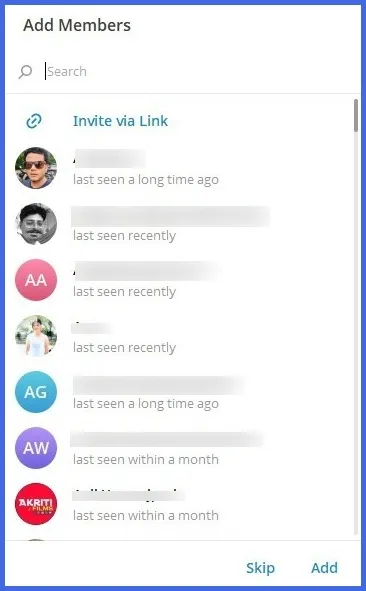
Step 6. Add Members (Optional)
- Invite contacts to join your channel as subscribers or skip this step.
- Click Add to finalize.
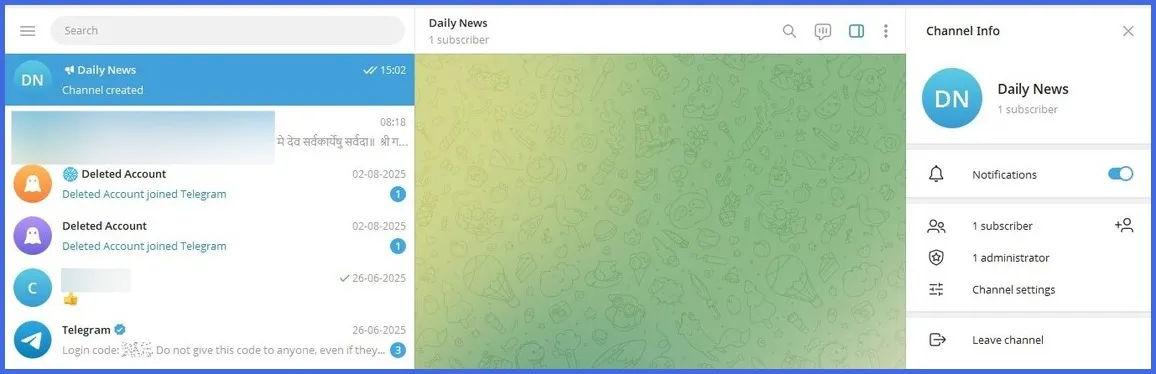
Done! Start Posting
- Your channel is live! As an admin, you can post messages, media, or even start a live stream.
- Manage settings (e.g., add admins, enable comments) by clicking the channel name and selecting the three-dot menu or pencil icon.
Pro Tips
- Public channels are great for growing an audience; private ones are perfect for exclusive communities.
- Channels support unlimited subscribers, and only admins can post unless you change permissions.
- Use bots or automation tools to enhance your channel’s functionality.