

Most vMix users hit the same wall: the software handles production brilliantly, but getting that signal out to YouTube, Twitch, and LinkedIn simultaneously requires a multistreaming layer. That's exactly what Yostream handles, and the connection runs through a standard RTMP output, which vMix supports natively.
This guide covers the complete setup, from getting your RTMP URL and stream key out of Yostream to configuring the output inside vMix.
What You Need Before You Start
- vMix installed on your PC (any paid tier or free trial)
- A Yostream account (free to create)
- A stable upload connection of at least 5 Mbps
No additional software, plugins, or encoders required. vMix's built-in RTMP output handles the full signal chain.
Two Ways to Connect vMix to Yostream
Before diving into the steps, it helps to know there are two methods available depending on your Yostream plan:
Method 1 — Connect OBS (available on all plans): Log into Yostream, select Connect OBS from the dashboard, and grab your RTMP URL and stream key. Paste those into vMix's Custom RTMP output and you're set.
Method 2 — RTMP Source (Yostream Pro and above): Enter the Yostream studio, add an RTMP Source from the Sources panel, and Yostream generates a dedicated RTMP endpoint for your vMix signal. More on this below.
Both methods result in the same outcome: vMix pushes one RTMP stream and Yostream distributes it to all your destination platforms. The difference is where the connection is configured inside Yostream.
Method 1: Connect vMix to Yostream via the Dashboard
Step 1: Open Yostream in Your Browser
Go to yostream.io in any browser. You do not need to install anything.

Step 2: Create or Log Into Your Account
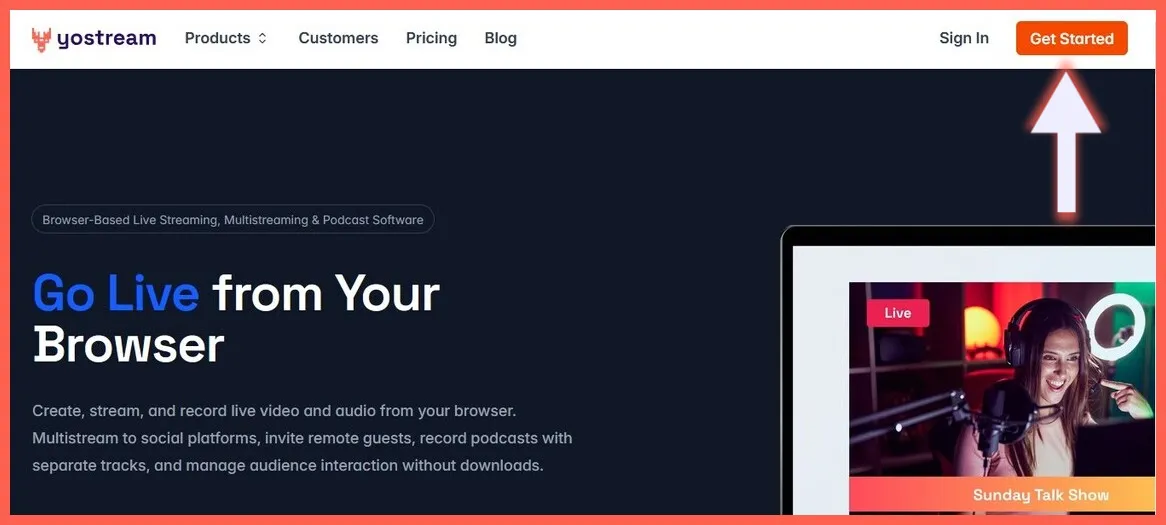
Click Get Started in the top-right corner of the homepage.
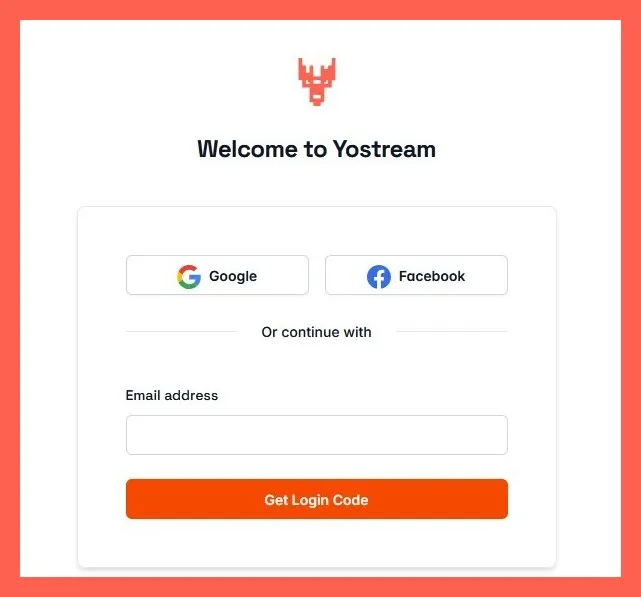
You can sign in with Google, Facebook, or any email address.
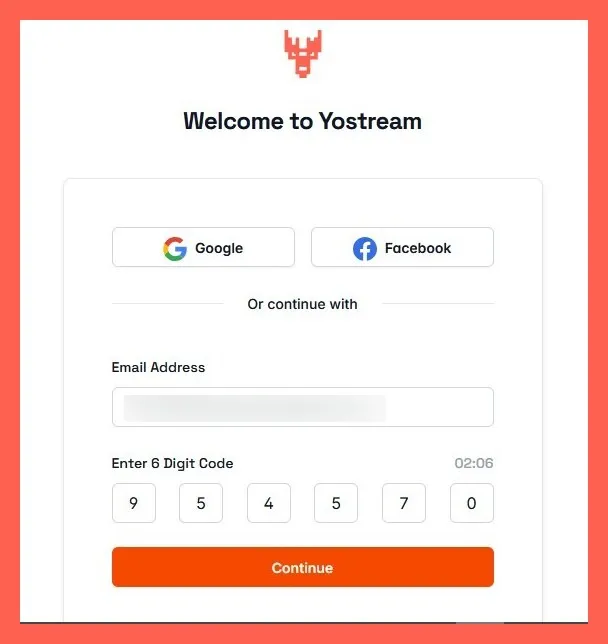
If you use email, Yostream sends a 6-digit login code to your inbox. Enter that code on the next screen and click Continue. No password required.
Step 3: Access the RTMP Credentials
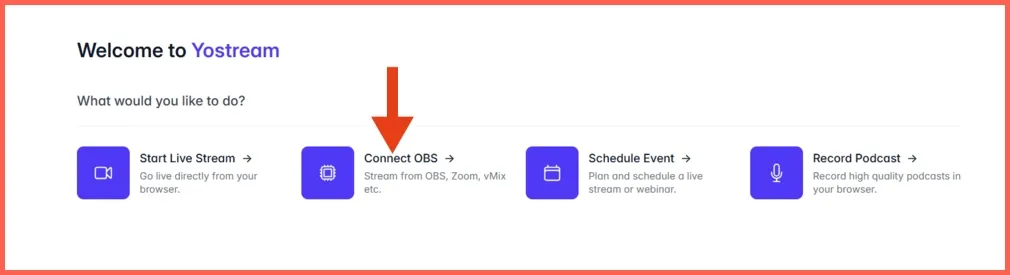
Once you are inside the Yostream dashboard, select Connect OBS. Despite the label, this option generates a standard RTMP endpoint that works with any encoder, including vMix.
The next screen displays two values you need:
- RTMP URL — the server address vMix will push your stream to
- Stream Key — the unique identifier for your broadcast session
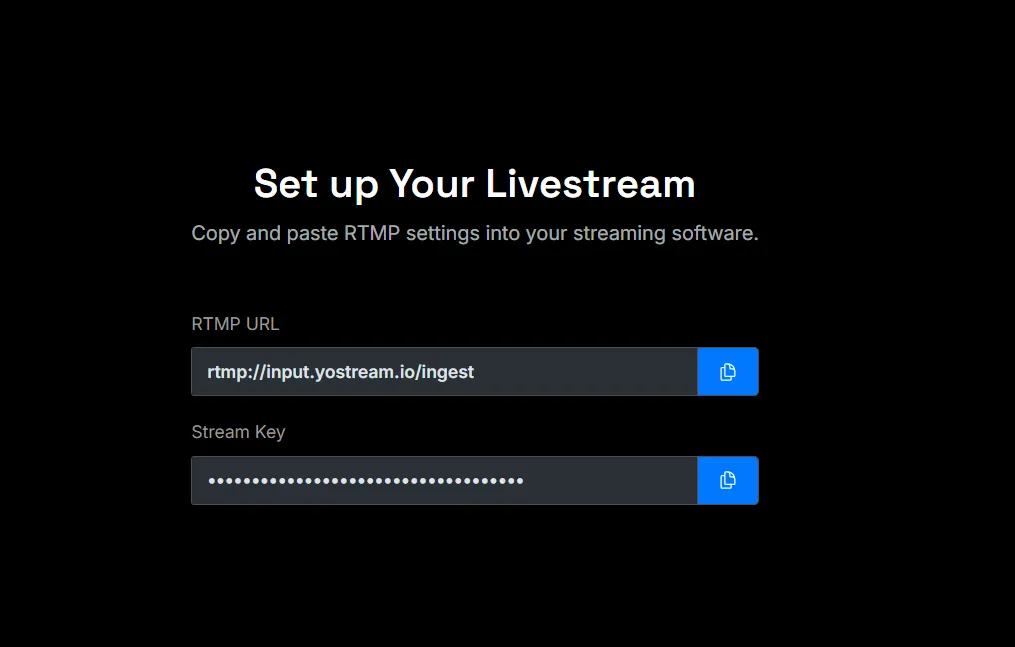
Copy both. Keep the stream key private; anyone with it can stream to your destination channels.
How to Configure vMix to Stream via RTMP
Step 4: Add a Source in vMix
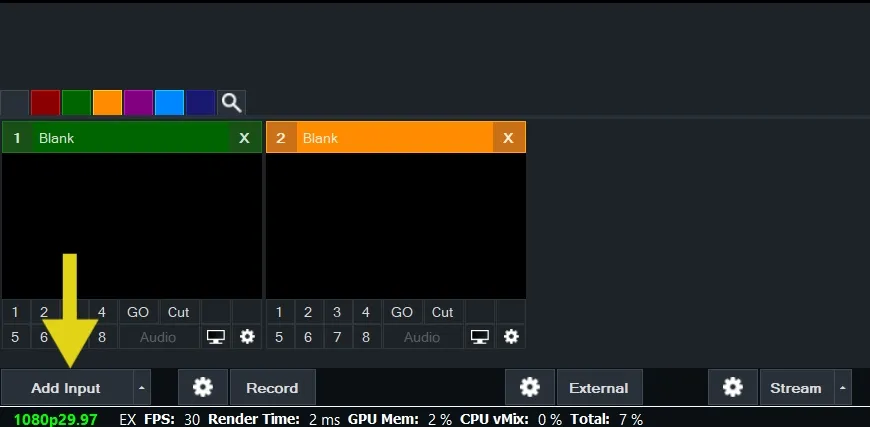
Before setting up the stream output, you need something in your vMix canvas to broadcast. For this tutorial, we're using a static image as the camera feed, which is a handy way to test the connection without needing a live camera.
Click Add Input at the bottom-left corner of the vMix interface.
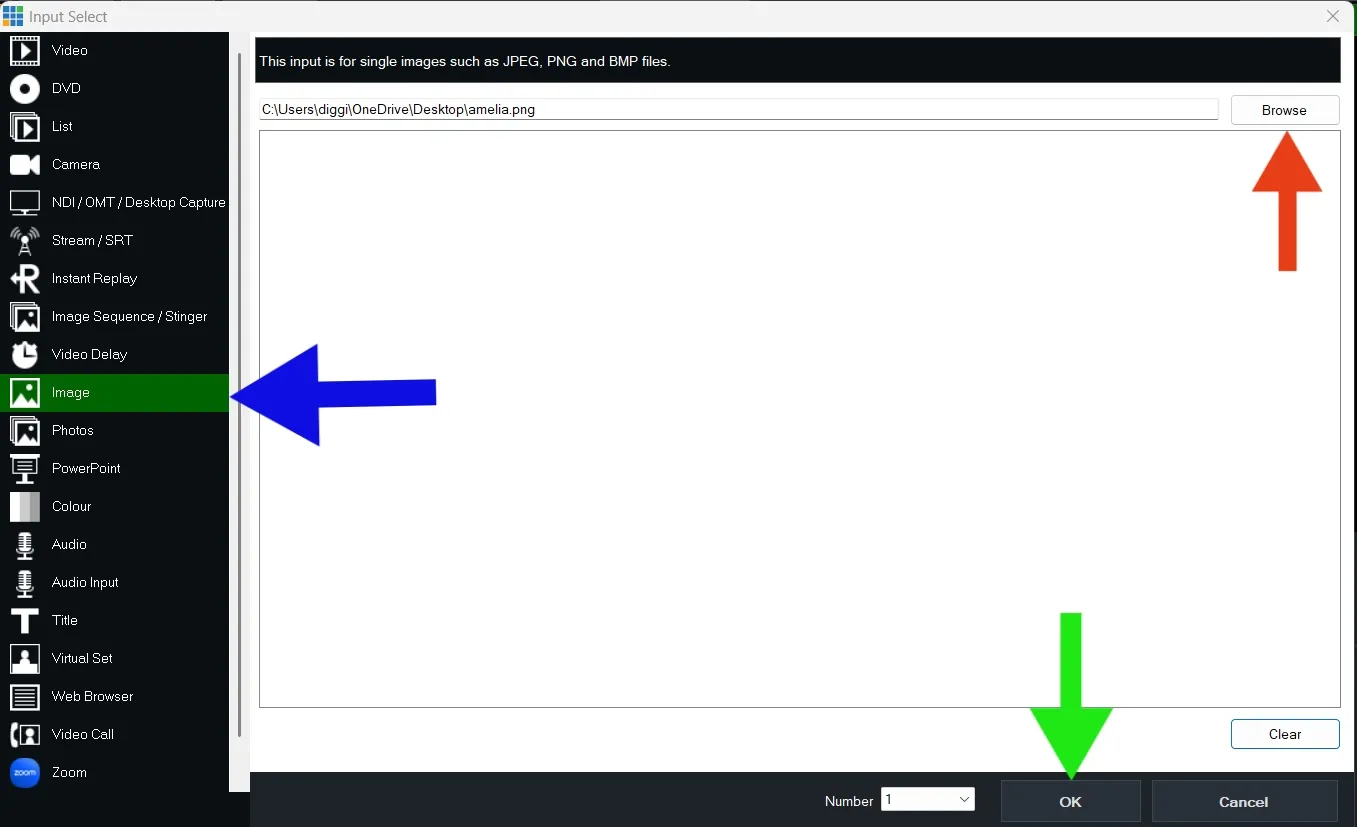
From the menu that appears, select Image, then click Browse to locate an image file on your computer. Once selected, the image will appear as a source in your vMix feed, just like a camera input would. Click Ok at the bottom.
Step 5: Open Stream Settings in vMix
Click the Stream button at the bottom of the interface.
Step 6: Select Custom RTMP as the Destination
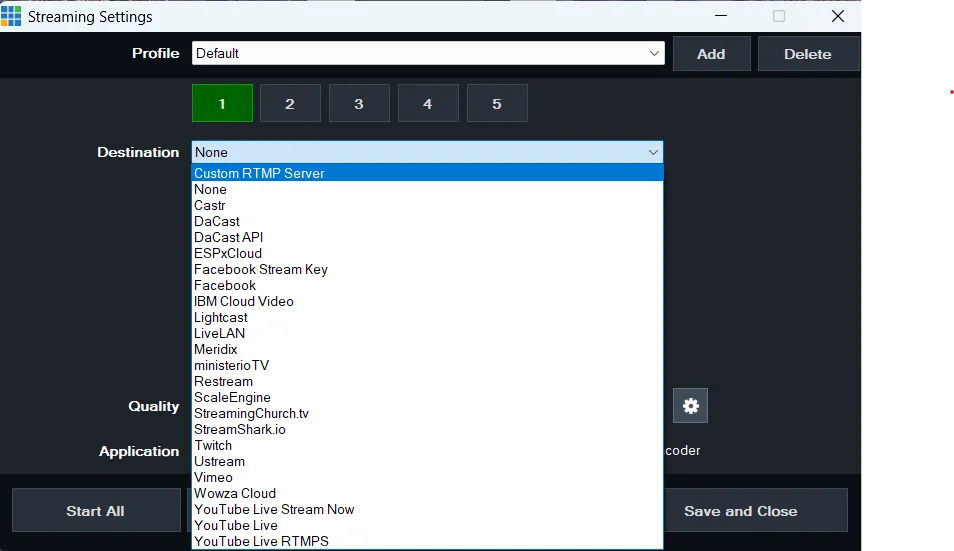
In the streaming provider dropdown, choose Custom RTMP Server. This unlocks the URL and stream key fields.
Step 7: Paste Your Yostream Credentials (from Step 3)
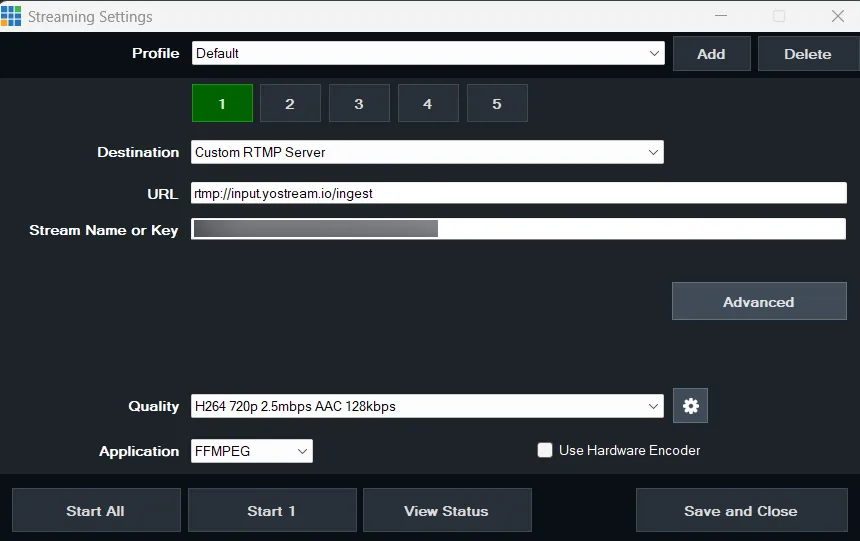
- In the URL field, paste your Yostream RTMP URL
- In the Stream Key field, paste your Yostream stream key
Set your video bitrate based on your upload speed. A starting point of 4,000–6,000 kbps works well for 1080p output to most platforms.
Step 8: Go Live
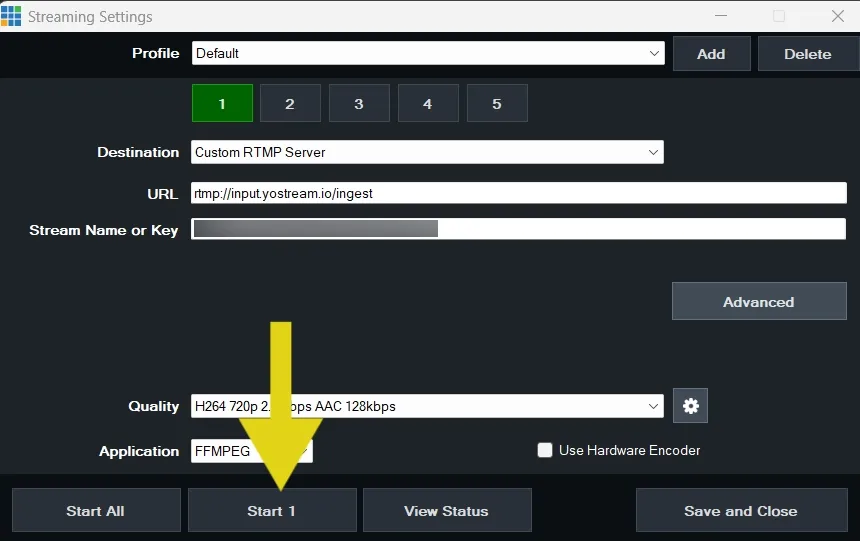
In the Streaming Settings window, ensure Channel 1 is selected (it will be highlighted in green) and configured with your Yostream RTMP URL and Stream Key. Click Start 1 at the bottom of the window to begin streaming to Yostream. Once the connection is established, your live stream will be transmitted to Yostream using the settings configured for Channel 1.
Method 2: Connect vMix Using RTMP Source (Pro Plans and Above)
If you're on Yostream Pro or higher, there's a second way to connect that gives you a bit more flexibility inside the studio itself.
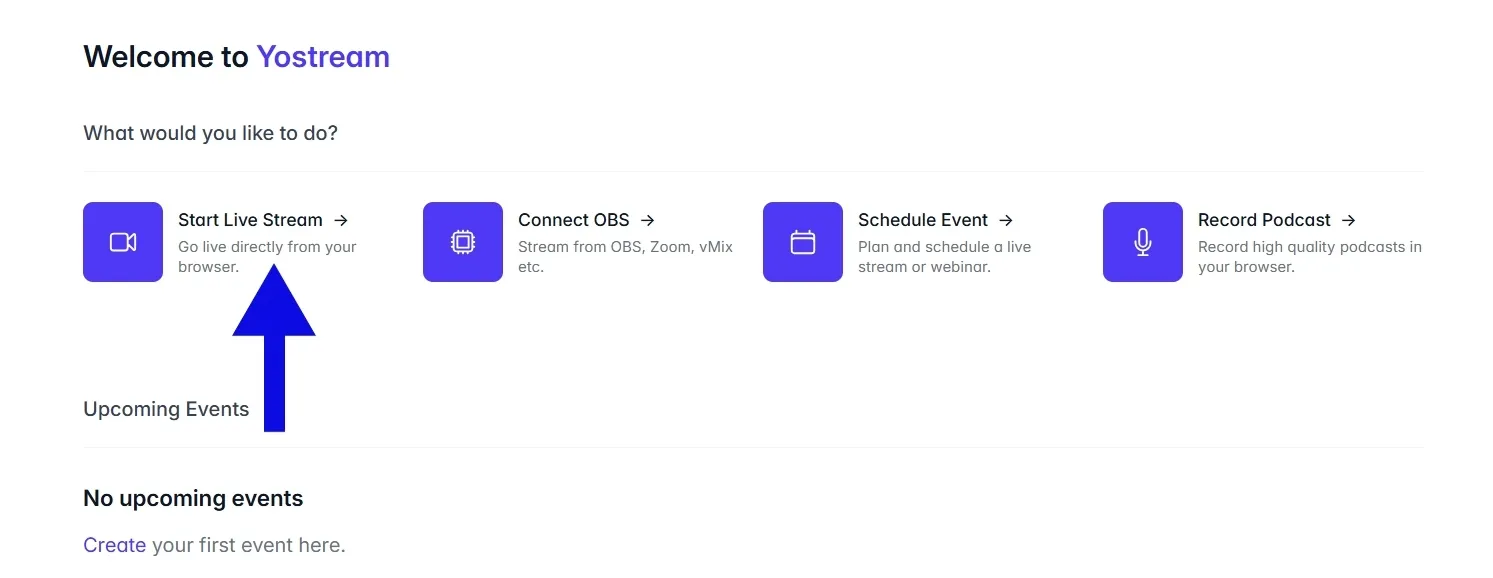
From your Yostream dashboard, click Start Live Stream to enter the studio.
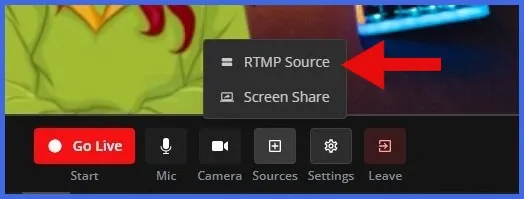
Once you're in, look at the bottom toolbar and select Sources, then choose RTMP Source from the options that appear.
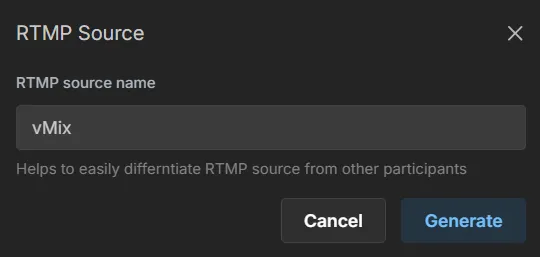
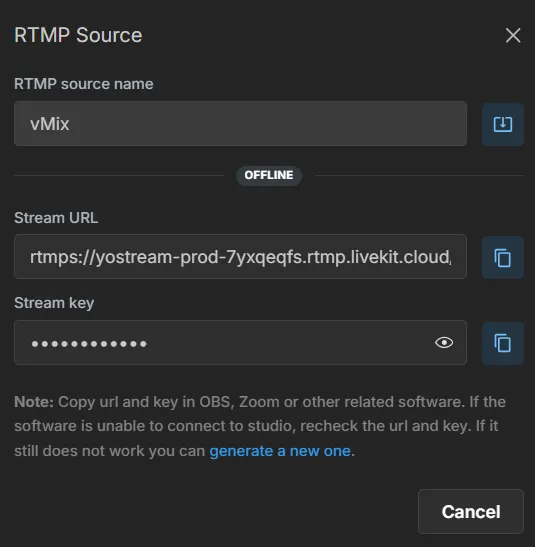
Give your source a name, and Yostream will generate a dedicated RTMP URL and stream key specifically for that input.
Copy those credentials and paste them into vMix using the same Custom RTMP setup described in Steps 5 through 7 above.
RTMP Source is built for creators who want the control of professional streaming software without giving up the multistreaming side of things. It lets you push a high-quality signal directly from vMix (or OBS Studio, XSplit, Zoom, and any other RTMP-compatible encoder) straight into the Yostream studio. That means your existing vMix setup, your scenes, camera switching, lower-thirds, graphics, and multi-camera productions all stay exactly as they are. You're just routing the output through Yostream instead of directly to each platform.
On top of that, once the signal is inside Yostream, you still have access to everything on the platform side: chat aggregation across platforms, analytics, branding tools, and simultaneous distribution to all your connected destinations. It's the cleaner option if you're running a more involved production and want a single, well-defined input point inside the studio rather than working from the dashboard.
What Yostream Does With Your vMix Signal
When vMix pushes an RTMP stream to Yostream, Yostream replicates and forwards that stream to multiple platforms simultaneously. This is called multistreaming. From the vMix side, it looks identical to streaming to a single destination. The multistreaming logic runs entirely on Yostream's servers.
This setup means vMix handles all production work (switching, mixing, graphics, NDI inputs) while Yostream handles distribution. Neither tool limits the other.
vMix RTMP Output Settings Reference
| Setting | Recommended Value |
|---|---|
| Protocol | RTMP |
| Video Bitrate | 4,000–8,000 kbps |
| Audio Bitrate | 128–320 kbps |
| Keyframe Interval | 2 seconds |
| Resolution | Match your vMix output (720p or 1080p) |
| Frame Rate | Match your vMix master frame rate |
Keep the keyframe interval at 2 seconds. Most platforms require this for reliable playback, and deviating from it causes buffering issues on the viewer side.
Troubleshooting vMix RTMP Connection Issues
Stream fails to connect: Double-check that you copied the full RTMP URL including the trailing slash or path if present. A single missing character breaks the connection.
Stream connects but drops within seconds: Lower your bitrate and check your upload speed. vMix will push whatever bitrate you set regardless of whether your connection can sustain it.
Yostream shows stream received but platforms aren't live: Confirm that your destination channels are connected and authorized inside the Yostream dashboard. RTMP delivery to Yostream is separate from platform authentication.
vMix shows stream key error: Regenerate the stream key inside Yostream and paste the new value. Stream keys can expire or be invalidated if you start a new session.
Why Use Yostream With vMix Instead of Streaming Directly
vMix's direct streaming output works well for a single destination. The limitation appears when you need to reach two or more platforms at the same time. Running multiple RTMP outputs from vMix increases CPU load and requires separate stream keys and quality settings for each platform.
Yostream removes that overhead. One RTMP output from vMix goes to Yostream, and Yostream handles the rest. Encoding, bitrate adaptation per platform, and simultaneous delivery all happen on Yostream's infrastructure rather than your production machine.
For broadcasters running graphics-heavy vMix productions, offloading multistream distribution is the practical approach.
Streamers Also Liked:
- Find the right path for your stream: Capture Card vs NDI for Dual PC Streaming: Which Setup Is Right for You?
- For a smooth performance: How to Fix High CPU Usage While Streaming
- Know the trick: How to Stream Games in 4K Without Frame Drops: The No-Lag Setup Guide for 2026