

Getting the embed code of your webinar on Yostream allows you to place your live session directly on your website, blog, LMS, or any platform that supports HTML. An embed code is simply a small snippet of HTML that “embeds” your webinar player so viewers can watch it without leaving the page. It improves reach, boosts engagement, and creates a seamless viewing experience for your audience.
If you’re using Yostream, the process is straightforward. The platform automatically generates a secure, responsive embed code for every webinar you create. All you need to do is copy it from your dashboard and paste it into your website or platform of choice.
Here’s how to get the embed code for your Yostream webinar.
Step 1.
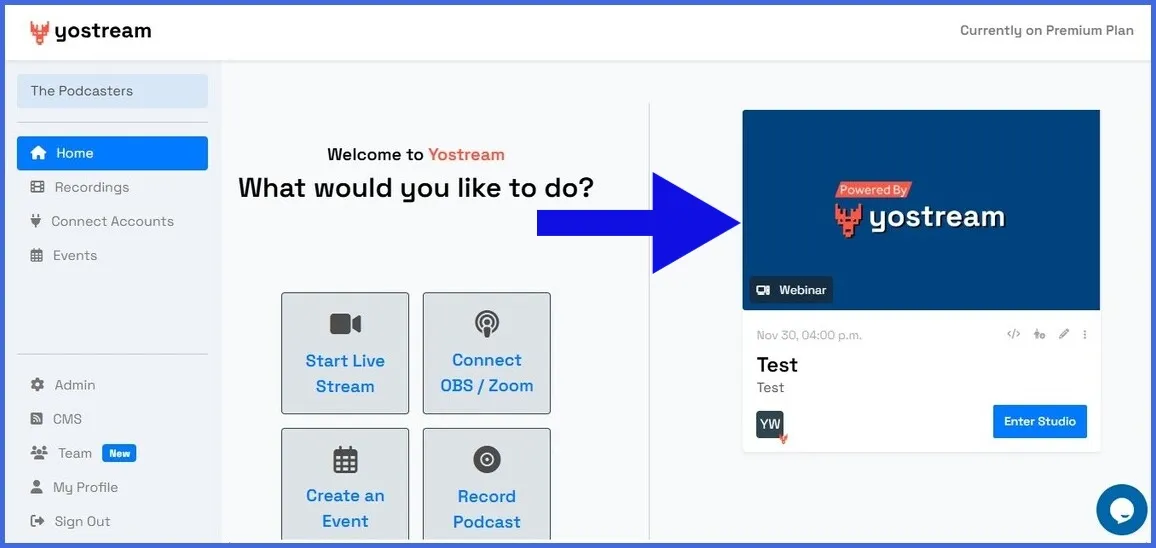
After signing in, you'll enter the Yostream dashboard.
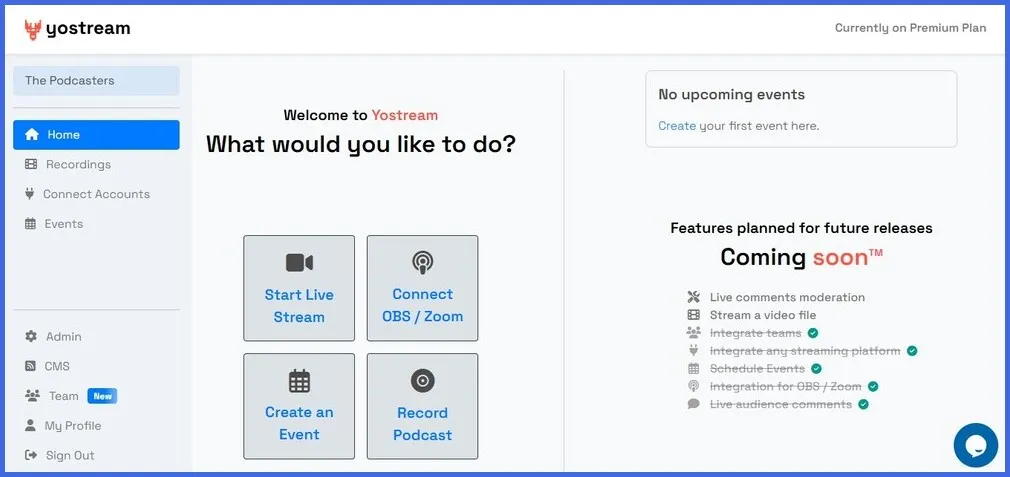
Step 2.
Click on the 'Create an Event' box.
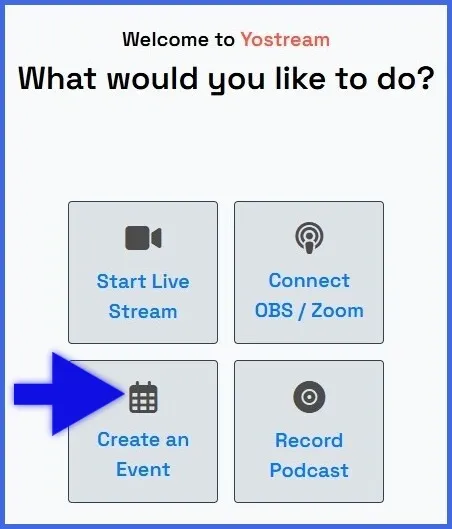
Step 3.
Select 'Live Webinar'.
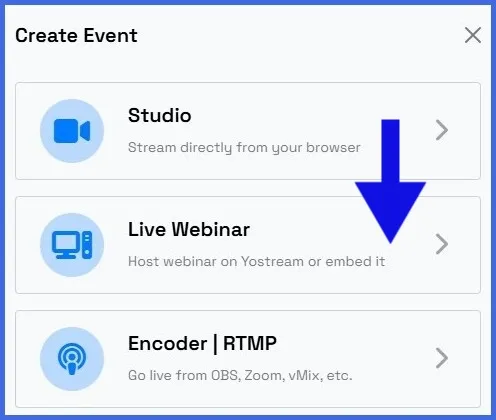
Step 4.
In the following form, you've to:
- Provide a title
- Write a fitting description
- Choose your desired date and time
- Upload a thumbnail
- Click 'Next'
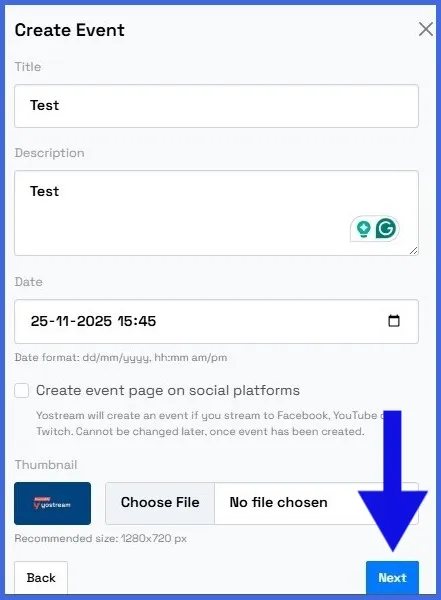
Step 5.
You can add your preferred accounts. Click 'Save' to proceed.
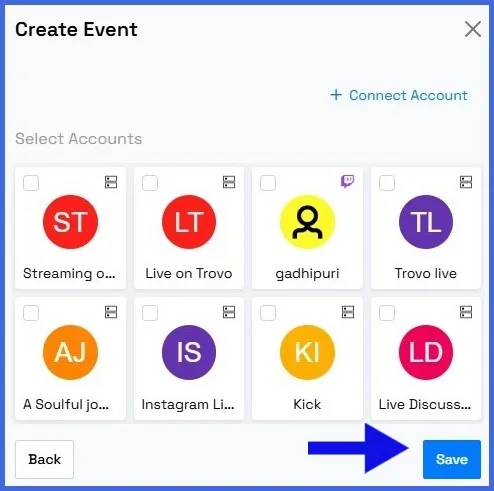
After scheduling the webinar, you can either copy the invitation link and send it to your guests or email them directly without copying the link.

Step 6.
After closing the window with the invitation link, you can see on your dashboard that the webinar has been scheduled successfully.
Step 7.
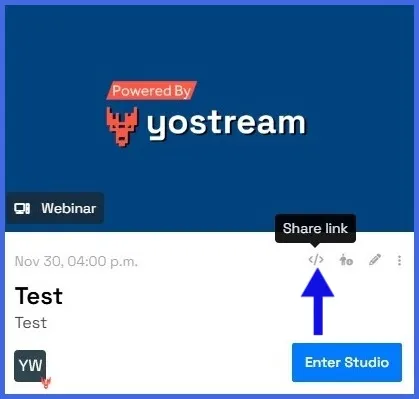
Click the 'Share Link' icon.
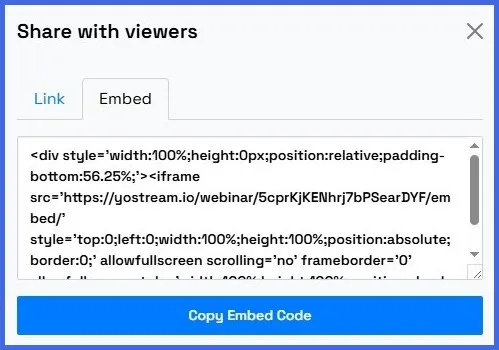
Select the 'Embed' tab and copy the embed code.
If you’re looking for a tool that stays out of your way and lets you create, host, and share a webinar without downloads or complexity, Yostream is built for you. It’s lightweight, intuitive, and entirely browser-based — making it perfect for teams, educators, and creators who want to embed webinars anywhere with zero technical stress.